System & Troubleshooting
App-level settings, machine identity, the sharing tunnel, account management, reporting issues — and fixes for the problems operators actually hit.
System, Account & Report Issue
System tab — app status & updates
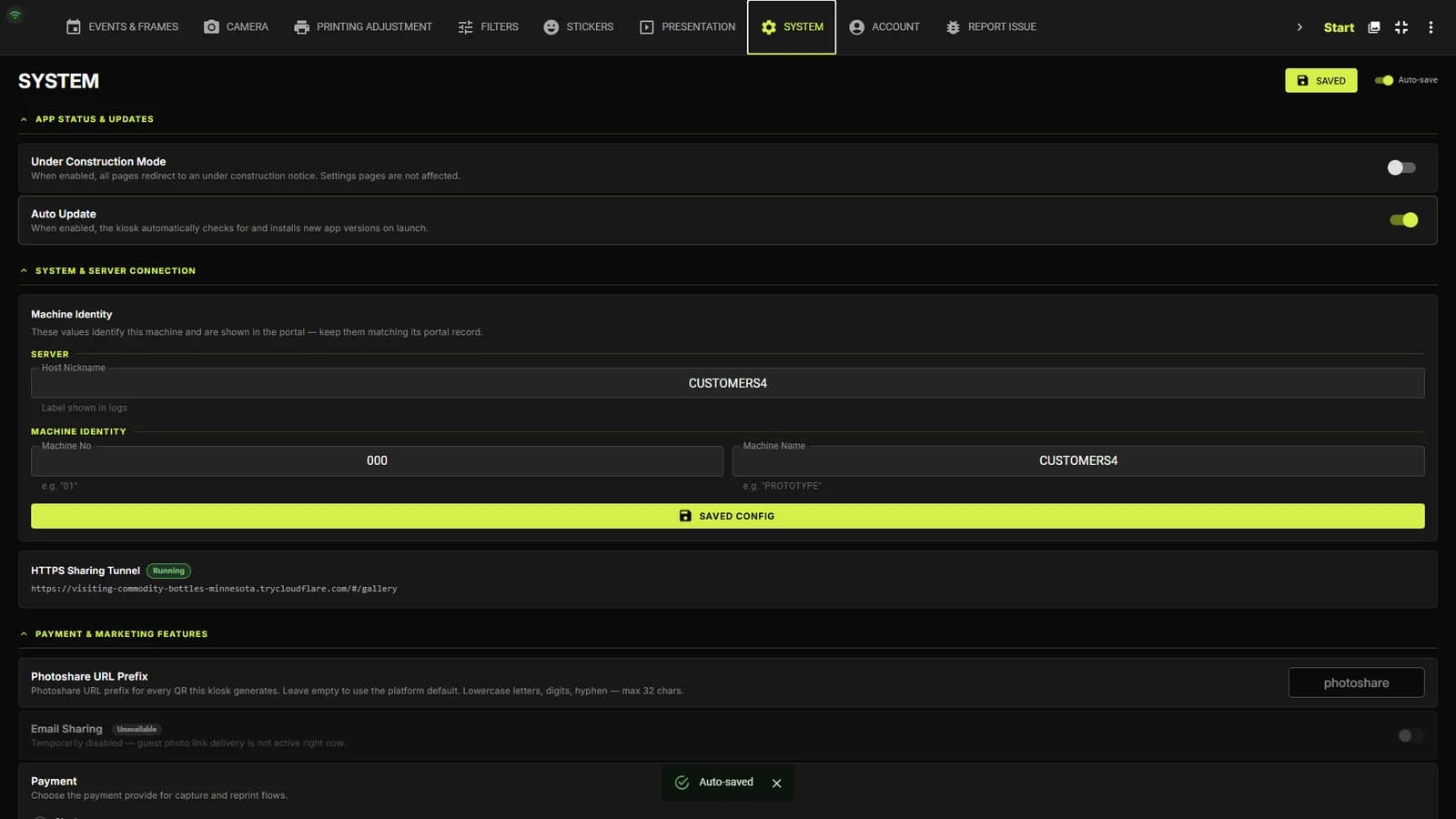
APP STATUS & UPDATES holds Under Construction Mode (redirects all guest pages to a notice while you work — settings stay reachable) and Auto Update. With Auto Update on, new versions install on launch; with it off, you're notified in Settings and can accept whenever convenient — ideally between events. Updating keeps all your events, settings and print history intact. Below sit the payment mode, coupon toggle, operator PIN and the license section with version info and a manual update check.
Machine identity & sharing tunnel
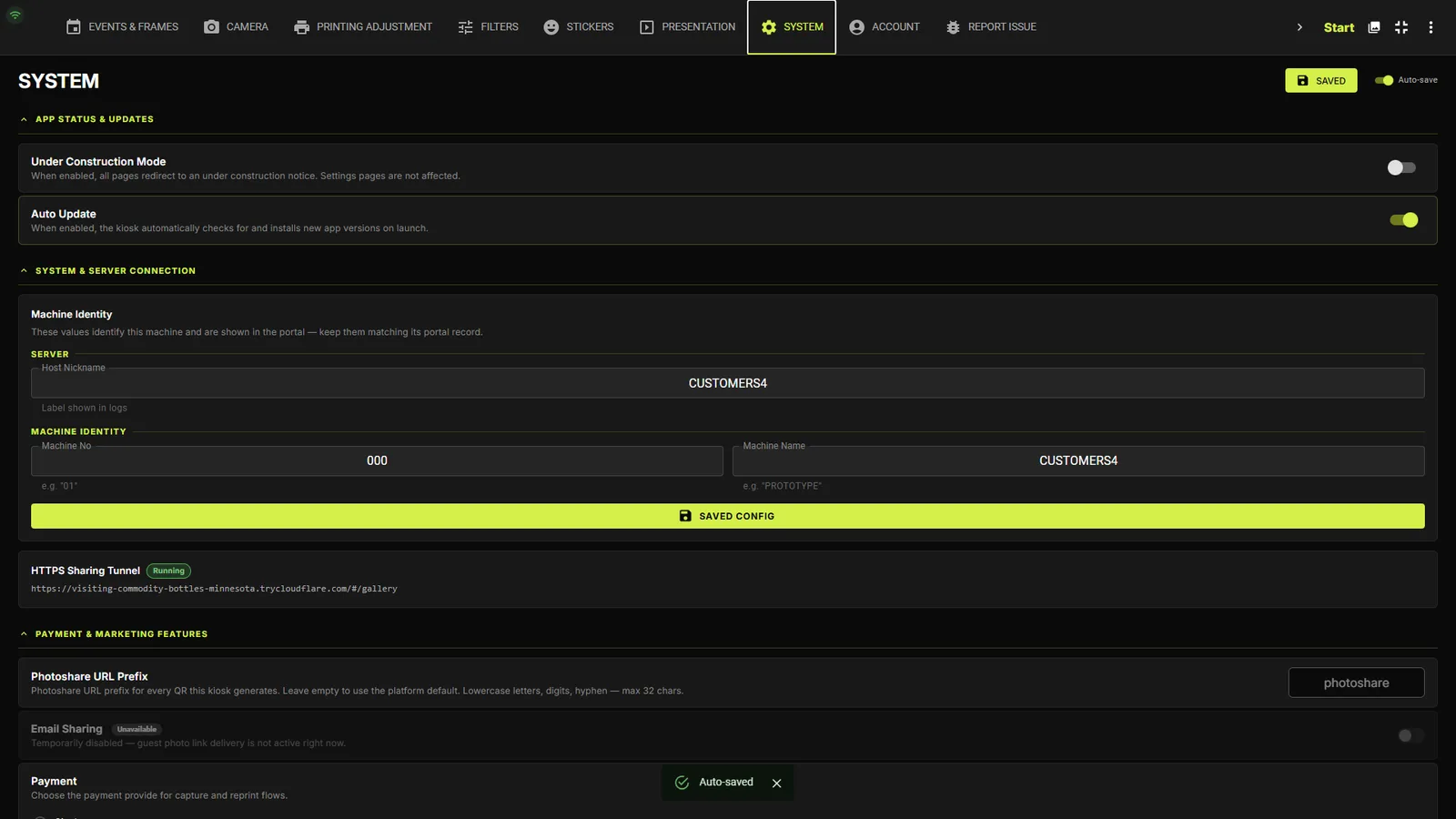
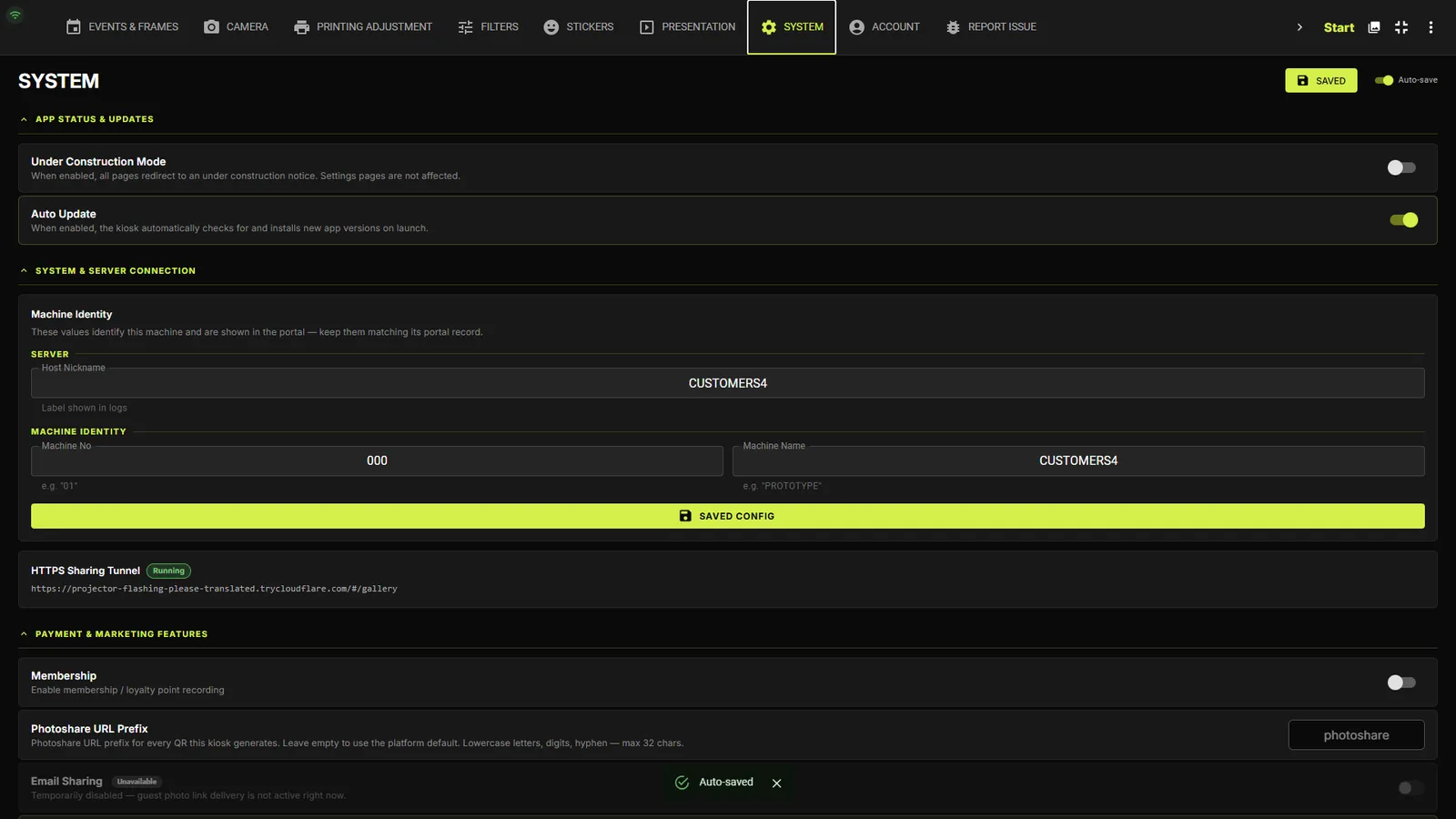
SYSTEM & SERVER CONNECTION stores the Host Nickname, Machine No and Machine Name that identify this booth in the portal and in logs — keep them matching the portal record. The HTTPS Sharing Tunnel panel shows whether the public share link is Running (with its URL) or Stopped.
Account tab
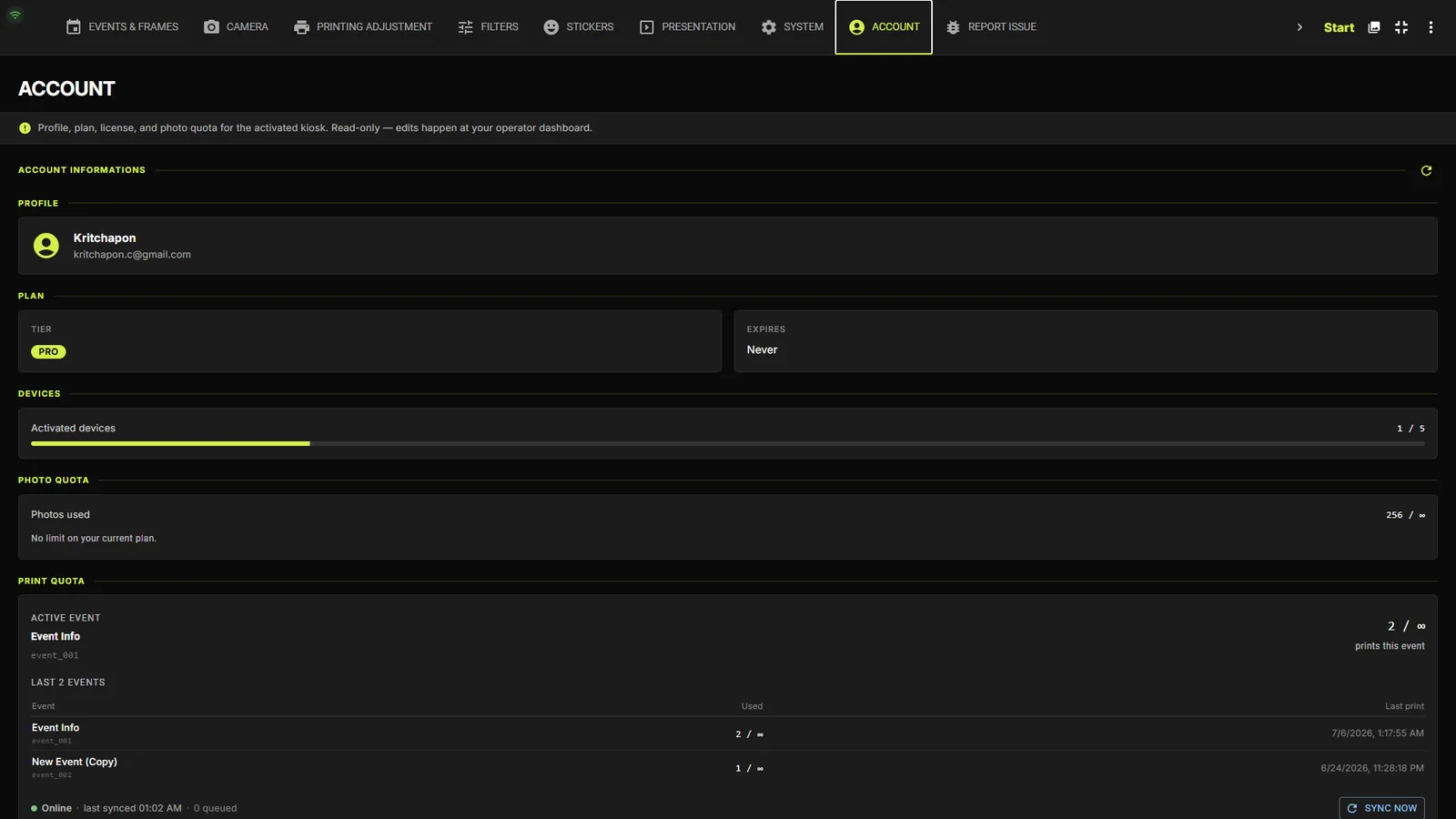
Shows the signed-in operator, role and tier, with sign-out. Signing in here is also how a license is activated.
Report Issue tab
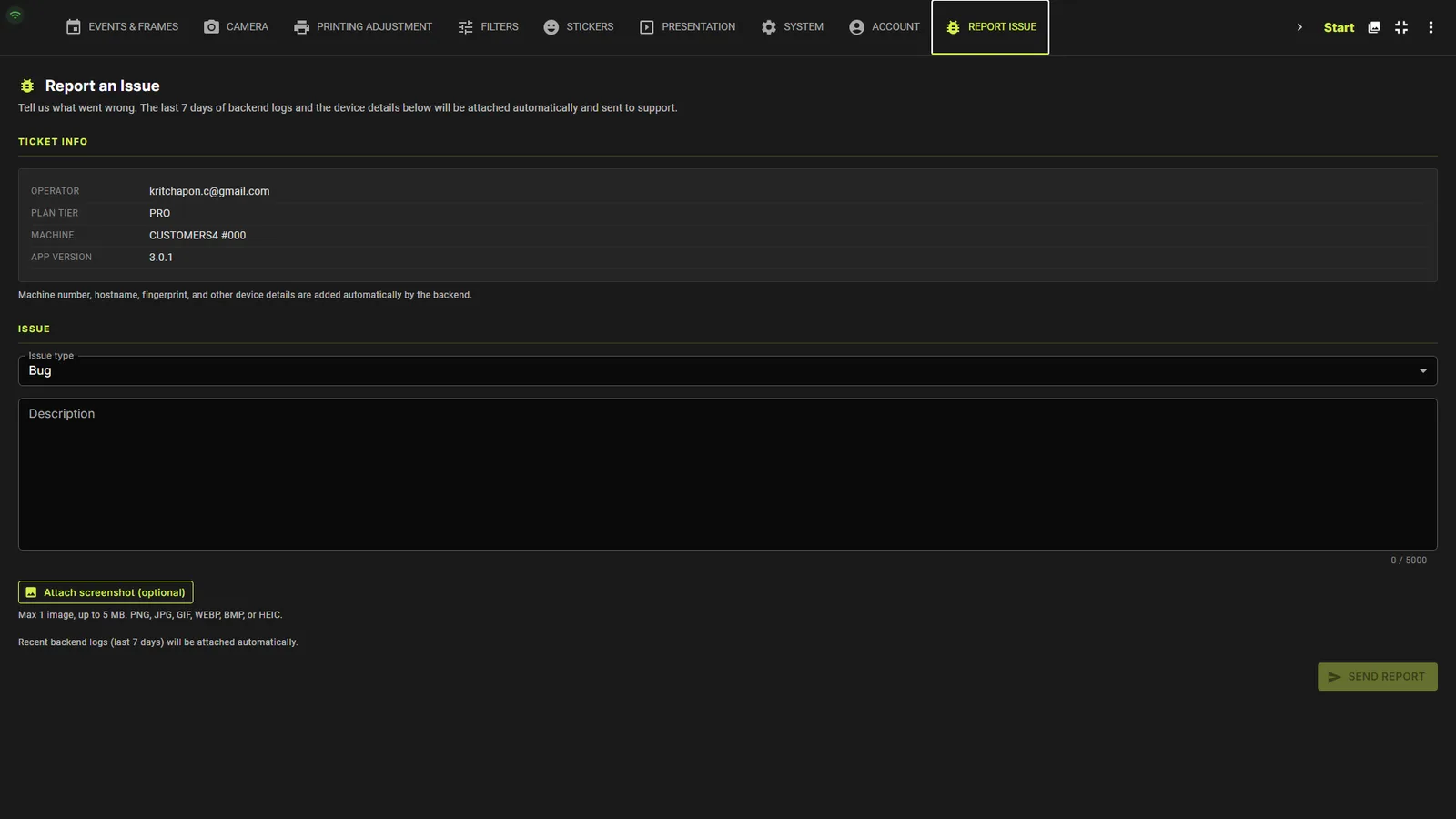
Send a bug report straight from the kiosk: pick the issue type, describe it, and attach a screenshot (up to 5 MB). The app version is pre-filled.
Common problems
The screen is frozen or blank
Give it a moment — CAPTURES detects a frozen screen and refreshes itself within a second or two. If it doesn't recover, press F5 to refresh, or restart the app from Settings.
“Camera Missing” dialog
The camera is off, asleep, or the USB cable is loose. Power-cycle the camera, re-seat the cable, then re-select it on the CAMERA tab. The kiosk keeps running and reconnects automatically.
If one camera is consistently slower or softer than the others, it may have been auto-switched to a safer capture mode after an earlier hiccup — that's expected and keeps the event running smoothly.
Live view freezes (DEVICE_BUSY)
Usually caused by an experimental AF method on a mirrorless body. Open CAMERA → LIVE VIEW AF METHOD and set the Mirrorless dropdown back to One Point (safe), then refresh the live view.
Camera rejects a setting (422)
Some bodies/lenses don't support every listed value (e.g. an aperture outside the lens's range). The error dialog lists the values the camera will accept — pick one of those and send again.
No printer connected / printing stopped
A warning appears on the frame preview screen when no printer is connected. Check the Windows printer queue and cable, then reopen PRINTING ADJUSTMENT to re-detect — the kiosk reports the real status (offline, out of paper, jammed, low ink) so you know what to fix. On the Free plan, also check whether the event has hit its 25-image limit.
License shows “Offline”
Normal at venues with spotty internet — the kiosk keeps working on its last known plan for up to 3 days. It's only a concern if it stays offline much longer; check the internet connection and the license syncs again automatically.
A payment seems stuckPro
Both QR and card payments need an internet connection to confirm — check connectivity and try again.
Dual-camera shots slightly out of syncPro
Software triggering has 10–80 ms of shutter jitter between bodies — invisible for posed portraits, noticeable for jumps or confetti. For tight sync, use one ESPER hardware trigger box wired to both cameras' shutter cables.
Free tier: event quota reached
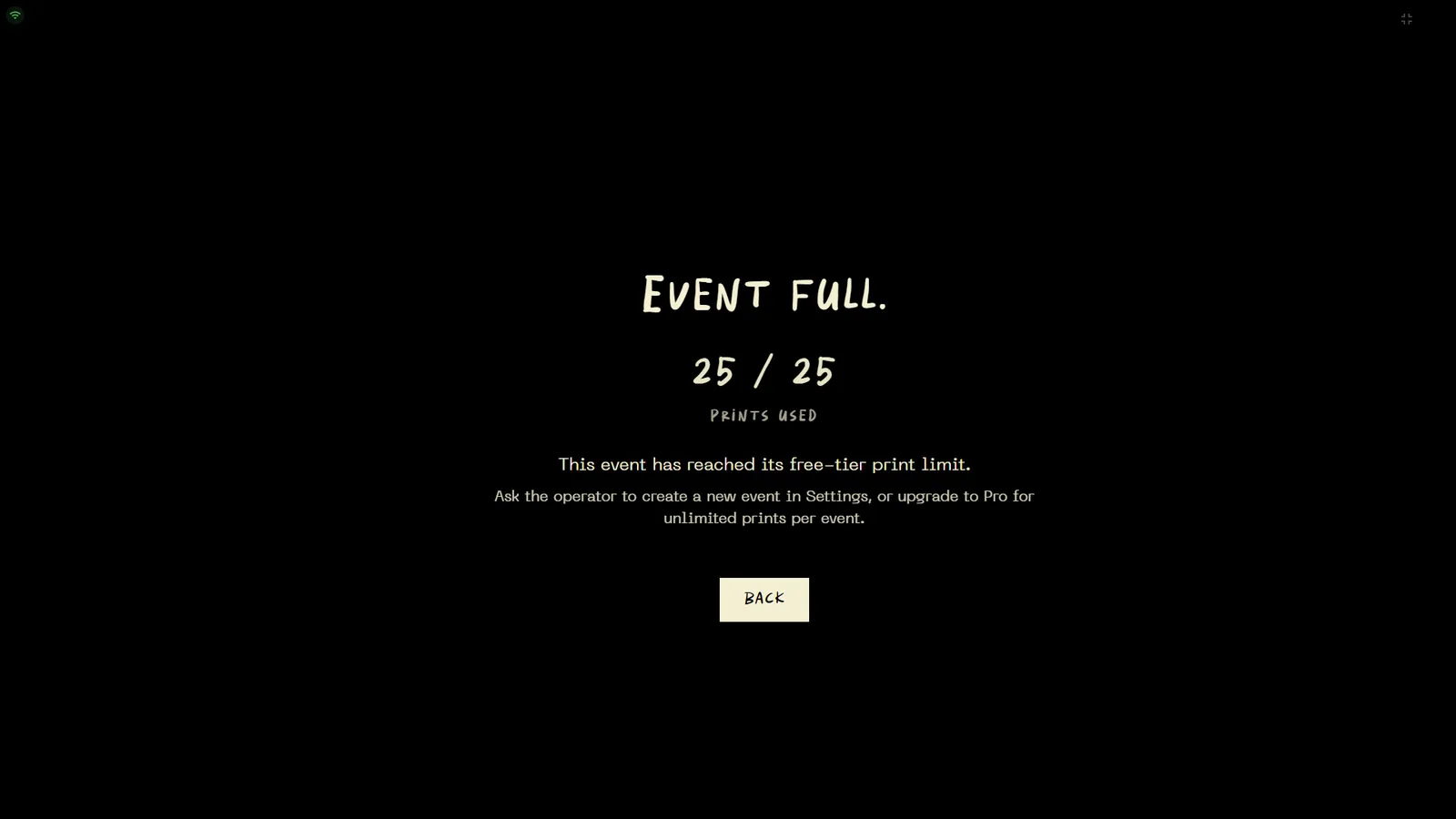
The Free tier allows up to 25 images per event. When the quota is reached the kiosk shows the “Event Full — 25/25” screen. Create a new event in Settings, or upgrade to Pro at portal.captures.photo/billing for unlimited images.
QR code not appearing
QR sharing needs an internet connection to upload the image. Check the connection indicator (top-left of the kiosk) and the Uploads page — pending images retry automatically once back online.
Still need help?
Reach out to your CAPTURES support contact — or use the REPORT ISSUE tab right on the kiosk. Include the machine name (visible in Settings → SYSTEM) and a quick description; that helps the team find your kiosk and assist faster.